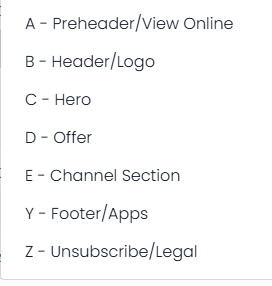
Content blocks are snippets or sections of HTML code. There are pre-defined block types and can be any of the following:
Adding a Content Block
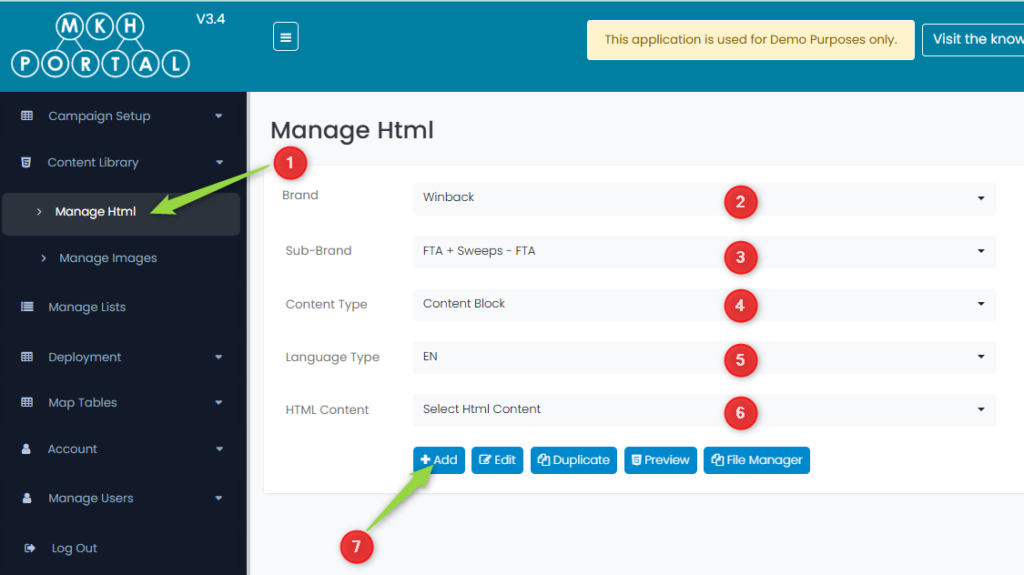
- Click the Manage Html option from the menu
- Select the Brand
- Select the Sub-Brand
- Select Content Block as the Content Type
- Select the Language Type (EN or FR)
- Click the +Add button
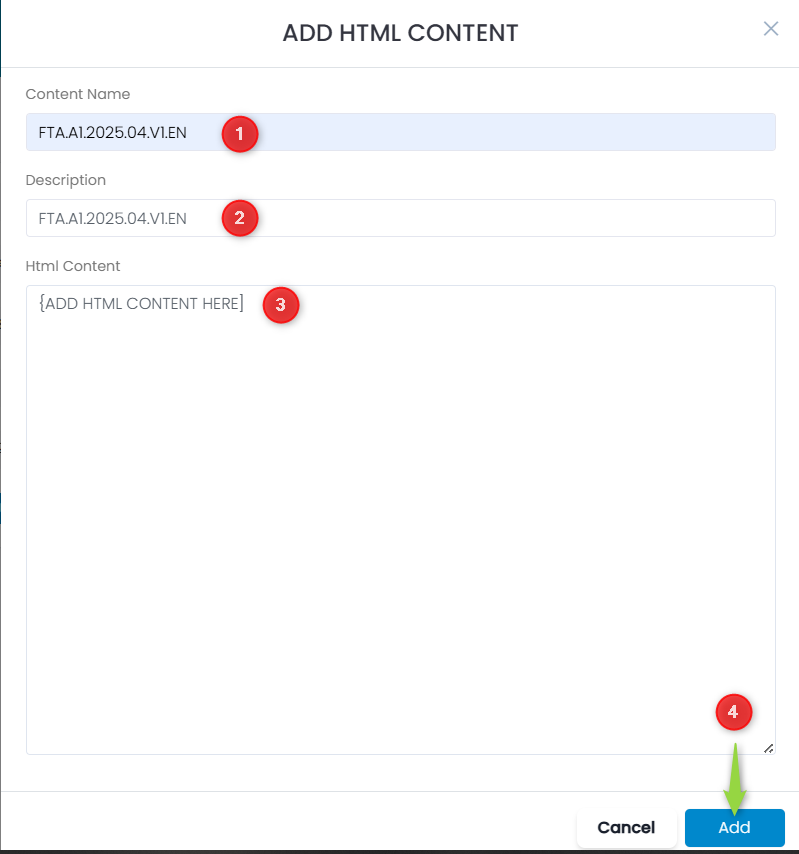
- Enter the Content Name for the content block (see below on the proper naming convention for blocks)
- Enter a Description for the block
- Paste in your Html Content
- Click the Add button to Save
How to Name Content Blocks
Blocks should be named using the following convention:
[TYPE].[BLOCK LETTER].[YEAR].[MONTH].[VERSION].[LANGUAGE]
| [TYPE] | Any characters that identify the campaign that the block is used |
| [BLOCK LETTER] | Letter A,B,C,D,E,Y or Z that corresponds to a block type shown above, followed by a number (typically 1, so A1, B1, C1, etc…) |
| [YEAR] | The current year |
| [MONTH] | The current month |
| [VERSION] | The letter V followed by a version number (i.e V1, V2, V3, etc.) |
| [LANGUAGE] | Either EN for English or FR for French |
For example a preheader (A) block could have a name as follows:
FTA.A1.2025.04.V1.EN for an English block and FTA.A1.2025.04.V1.FR for a French block.
NOTE: It is important to note that although a content block is added here, it DOES NOT automatically show up in the list of blocks that can be selected in a matrix. You must manually enter the block the first time a new block is used. After it is used once in a matrix, it will appear in the drop-down selection.