
There are four steps to define and use a variable in a matrix:
- Define the new variable name
- Insert that variable name into the appropriate HTML blocks
- Insert those blocks into a matrix
- Define the contents of the variable by adding the variable to a matrix
Here are the more detailed steps:
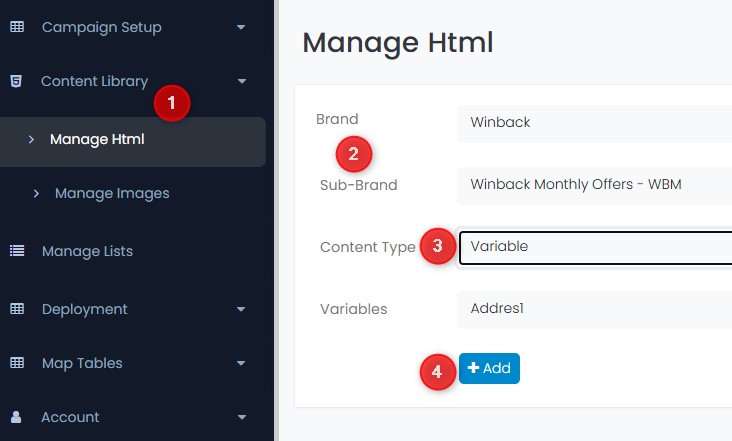
- Go to the Content Library
From the main dashboard or navigation menu, select the Content Library Menu option, then select Manage HTML - Select a Brand and Sub-brand
Use the dropdown menus to choose the Brand and Sub-brand you want to work within - In the Content Type Dropdown, Select “Variable”
Inside the HTML Content Manager, locate the Content Type dropdown
- From the list, select “Variable” as the type of content you want to add
- From the list, select “Variable” as the type of content you want to add
- Click “+Add” to Create a New Variable
Click the +Add button to start creating a new content variable - Enter the Variable Name and Save
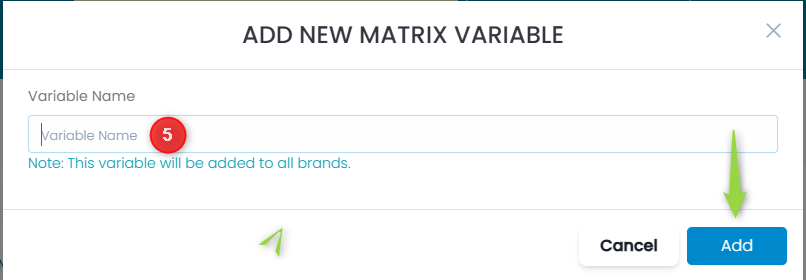
Fill in the required field:
- Variable Name (e.g.,
MVAR_DiscountCode) - Click the Add button to save
- Variable Name (e.g.,
- Verify the Variable
After saving the variable:
- Confirm it appears in the dropdown list below the Content Type selector
- This indicates it’s now available for use in matrices and HTML blocks
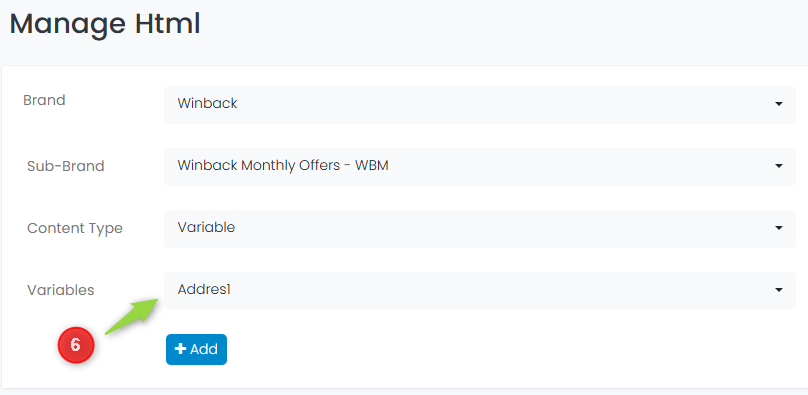
- Add the newly created variable to a content block
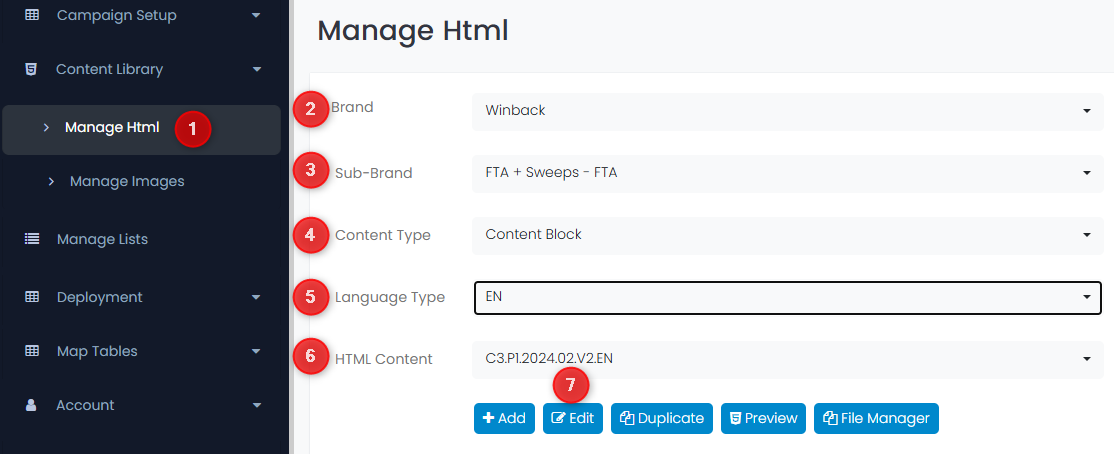
1. Select the Manage Html menu option under Content Library
2. Select the Brand
3. Select the Sub-Brand
4. Select “Content Block” as the Content Type
5. Choose the Language Type of the block
6. Select the block to edit from the HTML Content drop-down
7. Click the Edit button to edit the block
Next, add the variable into the block in the appropriate location. The variable name is enclosed in square brackets (i.e. [NEW-VARIABLE-TEST] ) and save the block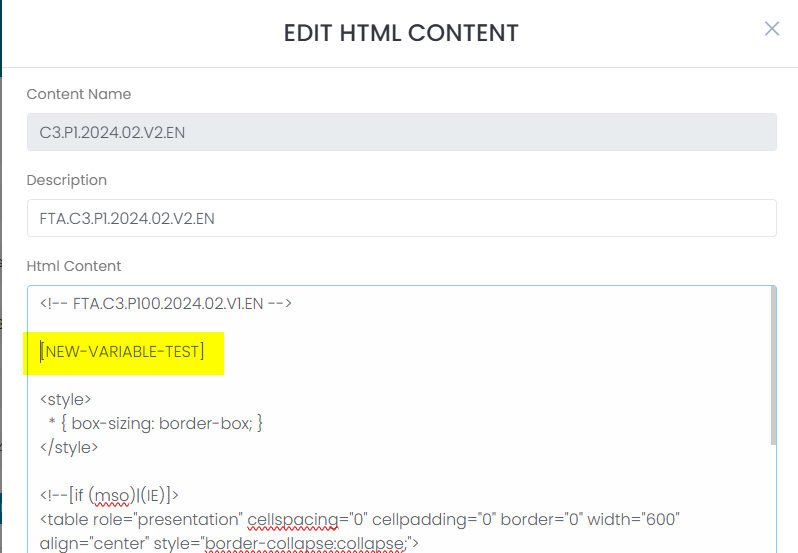
- Navigate to the Manage Matrix Screen
Go to the Manage Matrix section via the sidebar or main menu - Clone an Existing Matrix
Select an existing matrix and click Clone to duplicate it.
- Provide a new name for the cloned matrix (e.g.,
Summer2025_Test_Matrix)
- Provide a new name for the cloned matrix (e.g.,
- Insert the New Variable (Matrix content) MVAR in the Matrix
Inside the matrix editor:
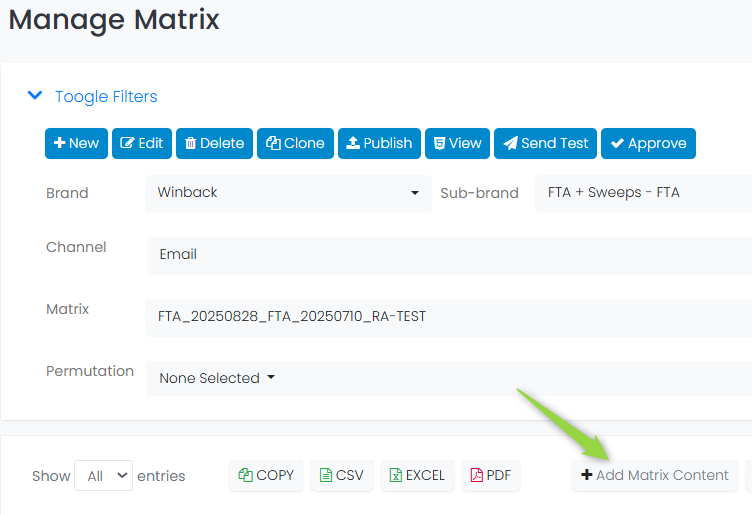
- Click the +Add Matrix Content button
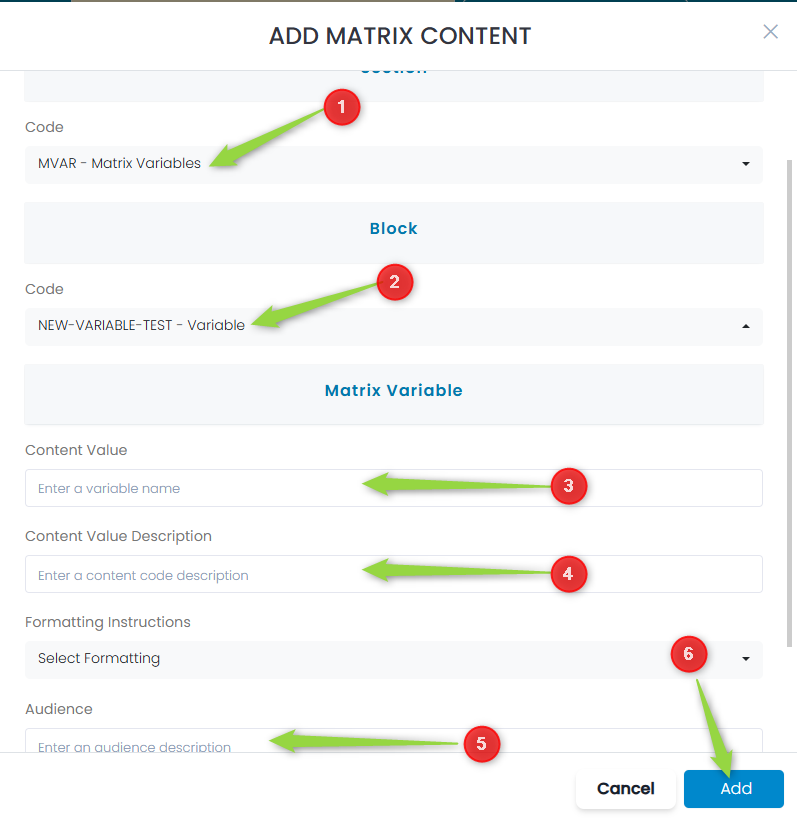
- Under the Code drop-down, select the variable that you created
- Update the fields associated with the variable
- Click the Add button to save:
- Publish the Matrix
- Click Publish to finalize and push the matrix to your target environment
- Validate that the new variable renders as expected using the View button to preview the matrix (select permutations as required) or by sending a test email