
Navigate to the Image Manager
From the main menu or dashboard, go to the Content Library menu option and select Manage Images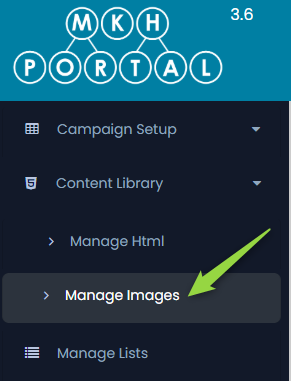
- Select a Folder
In the left-side folder tree or folder dropdown:
- Choose the folder that contains the images you want to download
- Choose the folder that contains the images you want to download
- Click “Refresh”
After selecting the folder, click the Refresh button to ensure the latest images are loaded - Select a Few Images
- Click each image checkbox to select it
- Click each image checkbox to select it
- Click “Download Files”
- Once images are selected, click the Download Files button (located at the top right of the image panel)
- This will begin downloading a
.zipfile for multiple imagers or an individual image – you will be prompted to provide a file location and filename for the file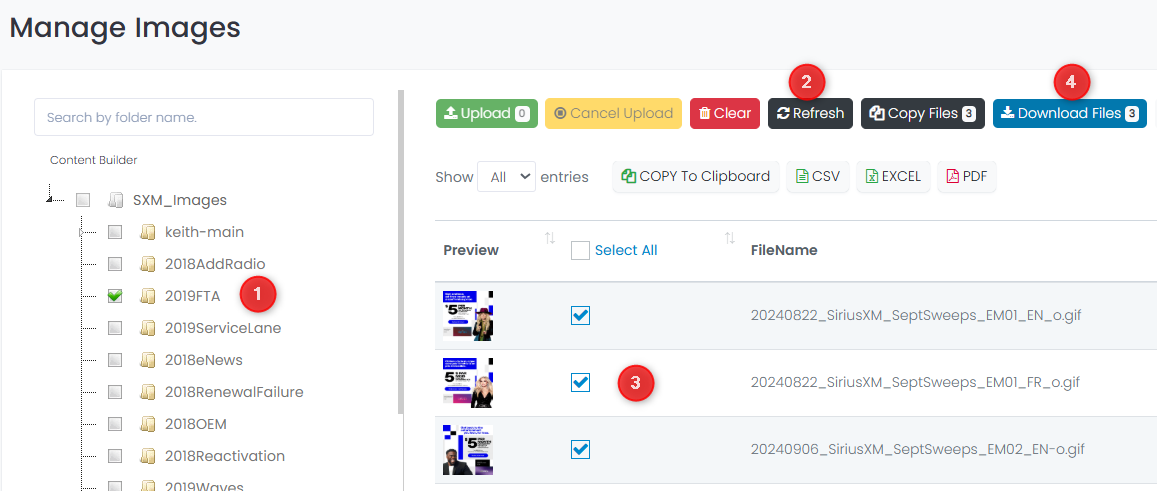
Verify the Images Are Downloaded to Your PC - Check the specified download location and confirm the selected images are present and open without issues