
Click on the + Add Matrix Content button and see this screen:
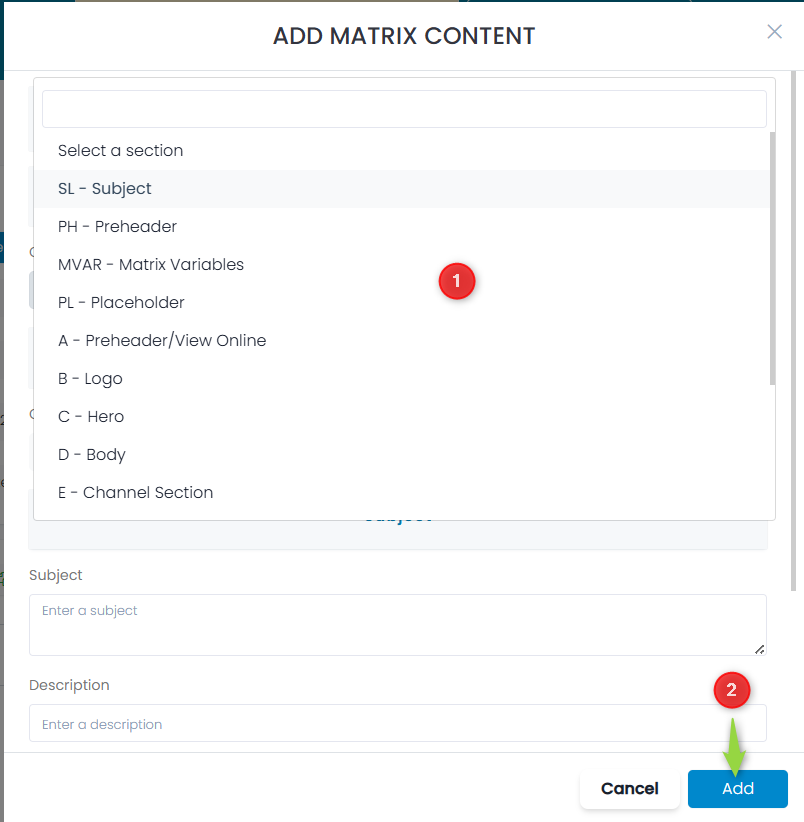
- Choose the section type from the list of pre-defined options
- Click the Add button
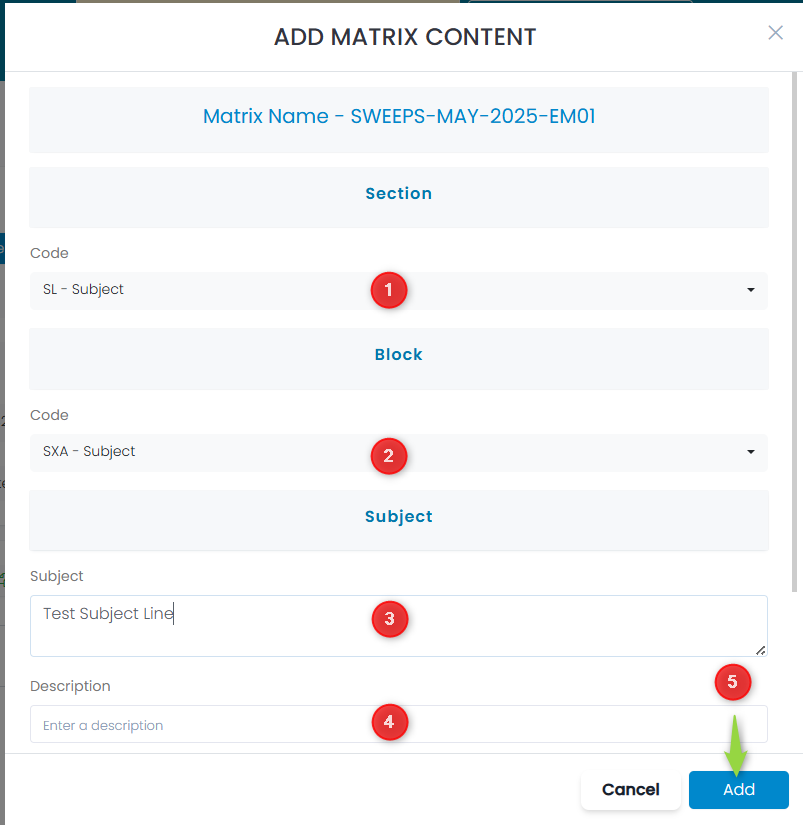
- In this case the SL – Subject block was selected
- Choose the code to be used for this – for subject lines it is SXA – Subject
- Enter the text for the Subject line
- Enter a Description
- Type a descriptor for the Audience – this can be anything to help you identify what this block is associated with (i.e. ALL, V1, V2, etc)
- Click the Add button
Adding a New Content Block
If you are adding a new content block and that block has been used in a matrix before, you can select that block name from the drop-down list. However, if it is a new block that has not previously been used in a matrix, it will not appear in the drop down selection. Instead, you must type in the name of the content block:
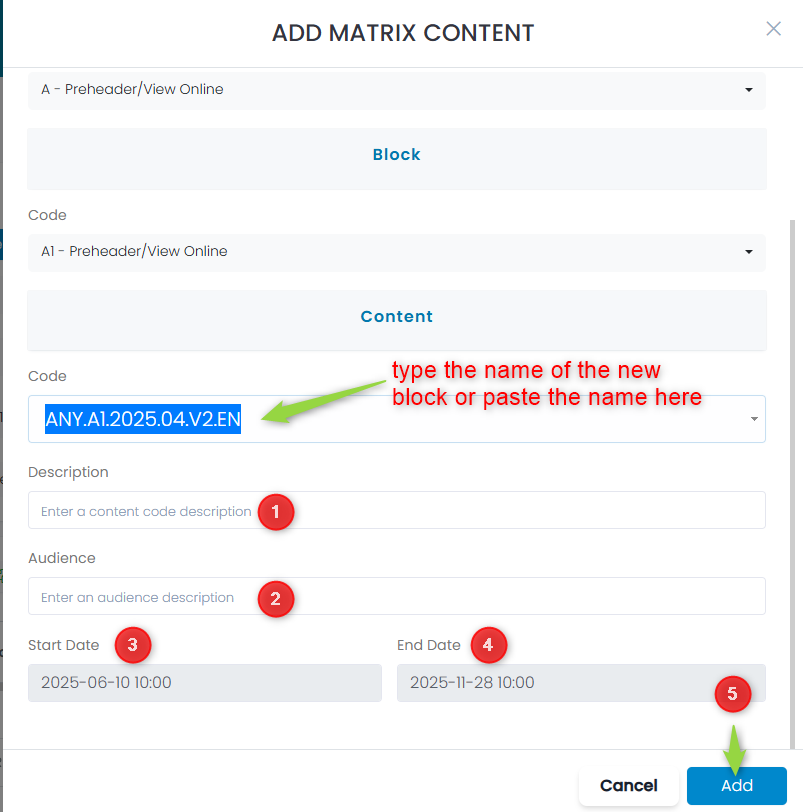
- Enter a Description that identifies the block
- Enter an Audience that identifies the block (this can be anything, i.e. All or V1, V2, etc).
- The Start Date is inherited from the Start Date defined for the Matrix and cannot be changed
- The End Date is inherited from the End Date defined for the Matrix and cannot be changed
- Click the Add button to save the update