
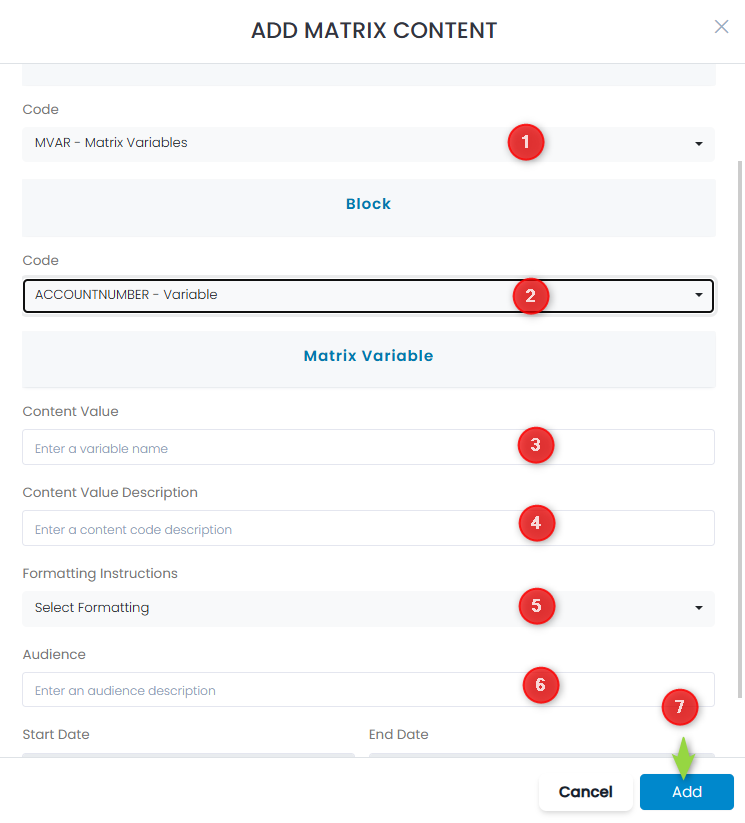
- Choose MVAR – Matrix Variables from the drop down list
- Choose the predefined variable you want to use
- Enter a Content Value
- Enter a Content Value Description for the variable
- Choose from pre-defined Formatting Instructions options for that variable
- Enter a description to identify the Audience to which this variable will apply – this can be anything to help you identify what this variable is associated with
- Click the Add button to add
ImagePath Variable:
It is important that any image paths are NOT hard coded because all images will be hosted on Adobe and as such the path will change. You always need to have the ImagePath variable defined in your matrix like in this example:

All images will be hosted in DevKit (see the KB article on uploading images to DevKit) so all paths will be a variation on https://images-dev-kit-mkhportal.ca
In your HTML, image paths must be coded as shown in this example:
<img src=”[ImagePath]FTA.E1.P3.2023.05.V1.EN.02.png” alt=” ” width=”498″ style=”display:block;border:none;width:100%;max-width:498px;color:#ffffff;” border=”0″/>
If you hard code the image path and it does not get updated in Adobe Campaign, the view online versions will not display properly (images will be missing)